
Photos for your appraisal
How to photograph a vehicle for an online appraisal
Clear photos let Underbook review your vehicle’s visible condition without seeing it in person. Here is exactly what the request asks for, and how to take photos that help the first time.
The short version
Every vehicle needs 7 photos: the front, rear, both sides, the interior, the dashboard with the odometer, and a tire. If your condition answers mention damage, wear, a warning light or rust, you’ll be asked for one more photo of each area. Anything else is optional.
For anything specific, one photo that shows where it is and one closer photo usually help more than a single extreme close-up.
Required for every vehicle
7 photos. All required photos must be added to continue.
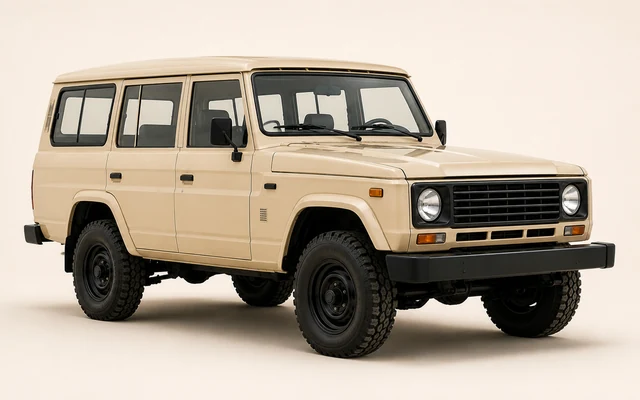
Front of Vehicle
Show the front and enough of the side to include the whole vehicle.
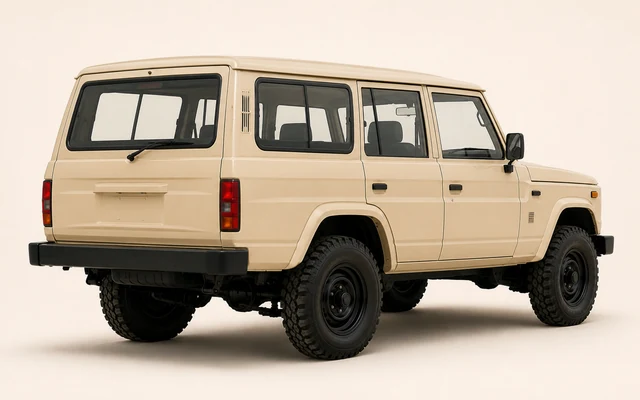
Rear of Vehicle
Show the rear and enough of the side to include the whole vehicle.
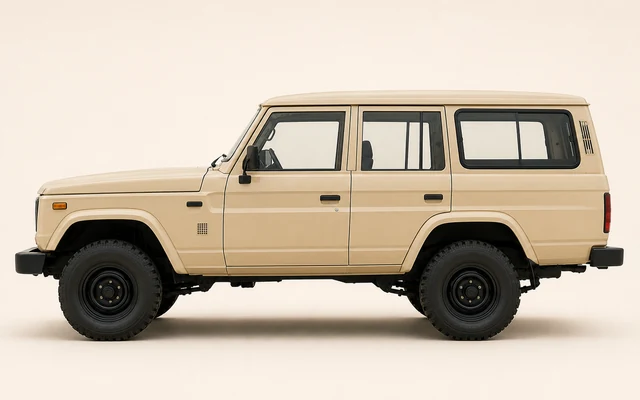
Driver’s Side
Show the full driver’s side straight on.
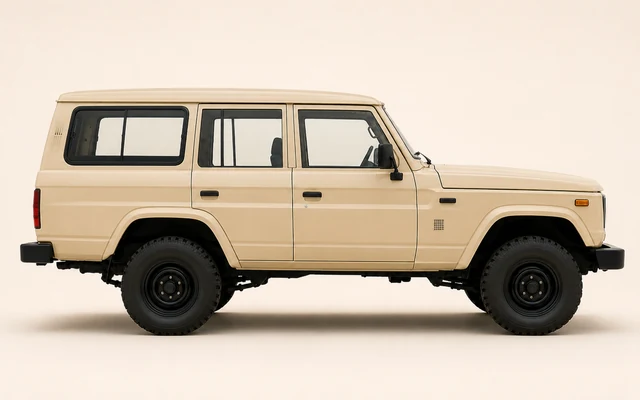
Passenger Side
Show the full passenger side straight on.
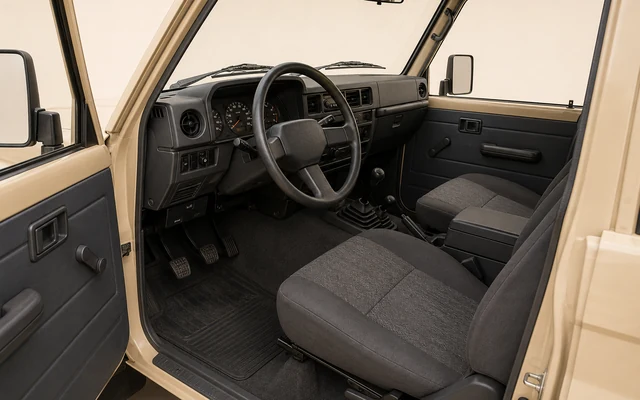
Interior
Show the front seating area and overall interior condition.
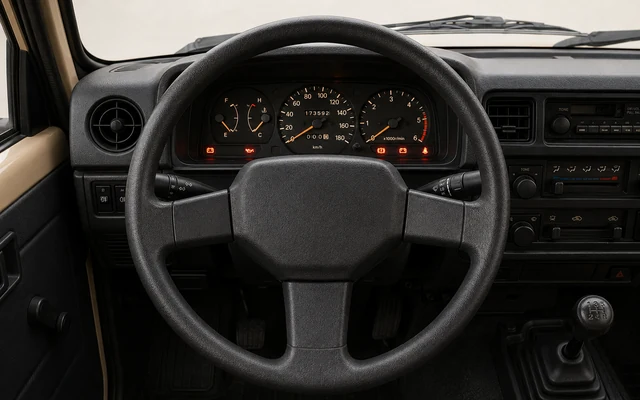
Dashboard & Odometer
Show the instrument panel with the odometer reading clearly visible.
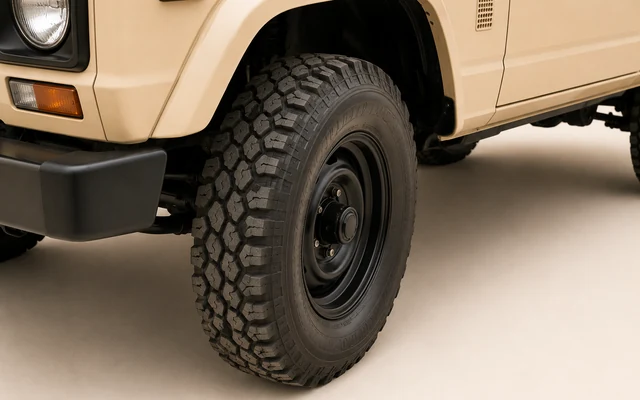
Tire Tread
Show the tread clearly and close enough to assess its condition.
Reference images show how to frame each photo. They are not customer photos.
Quick answers
- How many photos do I need?
- 7 for every vehicle, plus one for each area your condition answers flag. Up to 4 supporting photos are optional.
- Can I use my phone?
- Yes. Most requests can be completed from your phone, and if you start on a computer you can take the photos with your phone.
- Which files work?
- JPG, PNG or WebP, up to 10 MB each. HEIC photos aren’t supported yet.
Essential facts
- 7 required photos for every vehicle.
- Reported damage, wear, a warning light or rust adds one photo for each area.
- Supporting photos are optional and never block completion.
- Show where it is first, then get closer.
- Describe what you see. You don’t need to diagnose it.
Photos your answers may request
When your condition answers mention one of these, the request adds one photo for that area. It’s required once it’s requested, and one photo can cover more than one answer about the same area.
- Body damageOnly if reported
- Photograph the exterior area you reported. Include enough surrounding bodywork to show its location and extent.
- Damaged glassOnly if reported
- Photograph the damaged glass. Include enough of the surrounding window or windscreen to show where it is.
- Wheel or tire damageOnly if reported
- Photograph the damaged wheel or tire. Show the affected wheel and tire together, close enough to read the damage.
- Additional interior photoOnly if reported
- Photograph the interior area you reported. Include enough of the surrounding trim or seat to show its location and extent.
- Rust or CorrosionOnly if reported
- Photograph the corrosion. Include both a close view and enough surrounding area to show where it is.
- Dashboard Warning LightOnly if reported
- Photograph the warning light. Take the photo with the ignition on and the full instrument cluster visible.
Helpful, if relevant
Supporting photos can help show damage, wear, warning lights, modifications, or anything else relevant. These never block completion. You can add up to 4. Some things worth showing:
- A repaired or touched-up area, with enough around it to show where it is.
- Modifications, added equipment or anything missing.
- A second angle of something you’ve already reported.
- Anything that’s easier to show than to describe.
If you’re unsure whether something matters, photograph it and describe it in your own words.
Show where it is, then get closer
A close-up on its own can show what something looks like but not where it is or how big it is. For a specific problem, take one photo that shows the whole panel or area, then one closer photo of the problem itself.
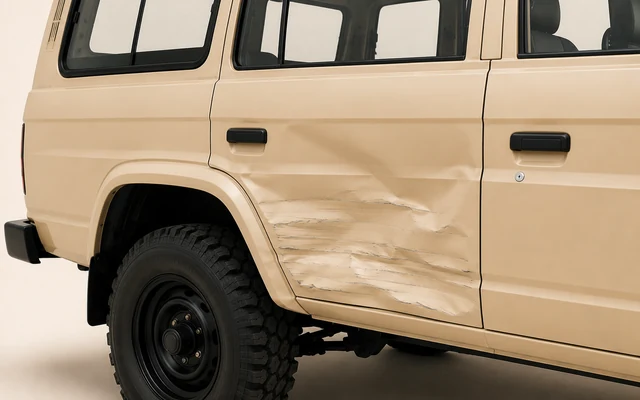
The damage in place, with the panel around it.
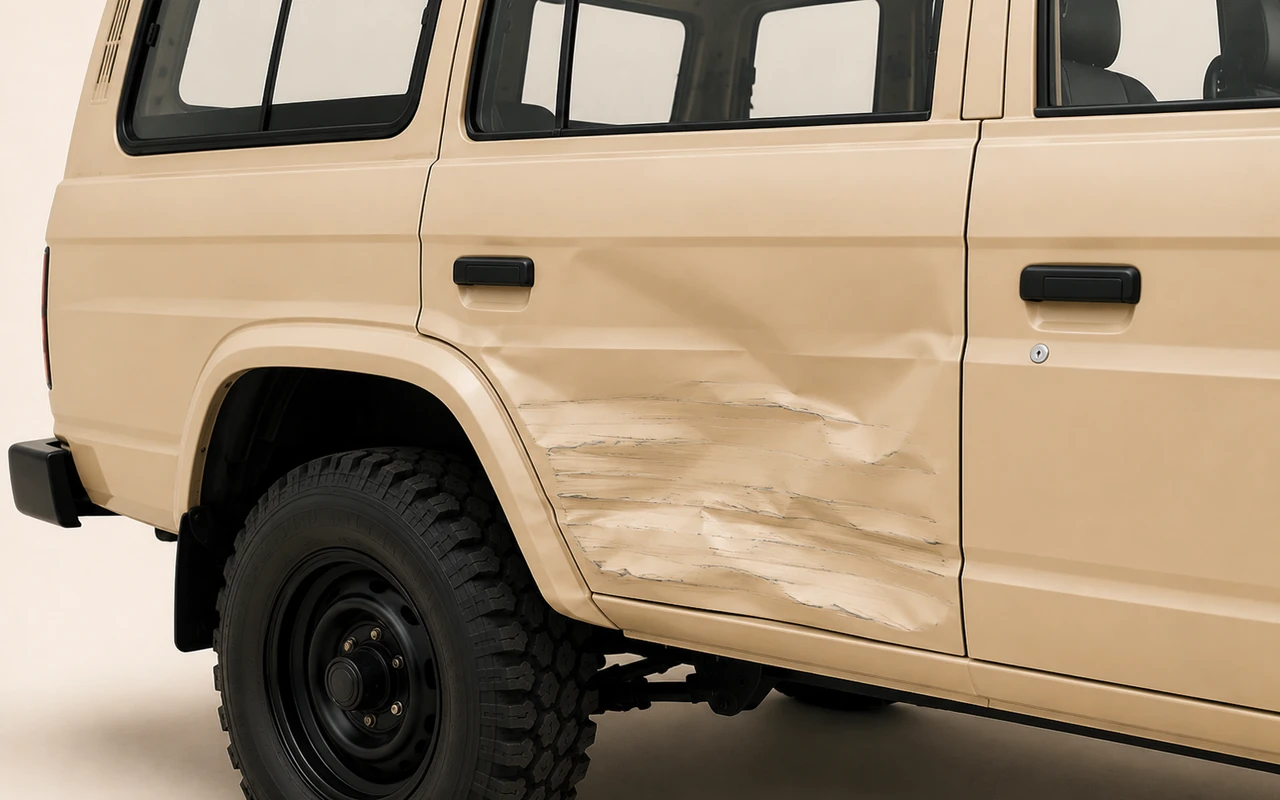
The same damage, close enough to see the detail.
Reference images of a demonstration vehicle, not customer photos. The close-up is a closer view of the same image.
Tips from the request itself
- Use natural light where possible.
- Avoid glare and reflections.
- Hold your camera level.
- Include the whole vehicle in frame.
- Check that important details are clear.
What makes photos harder to use
- Blur. Hold still, or take a second photo if the first isn’t sharp.
- Darkness or glare. Daylight or an evenly lit space works best; avoid reflections on glass and screens.
- A close-up with no location. Add a wider photo that shows where it is.
- A screenshot or cropped copy when you have the original photo. Upload the original.
- Framing that hides or plays down something you’ve reported. A clear, honest photo lets the review support a value.
The dashboard and odometer
Show the instrument panel with the odometer reading clearly visible. The number should be readable in the photo, without glare across the display. If a warning light is on: take the photo with the ignition on and the full instrument cluster visible.
You don’t need to diagnose anything
Photograph what you can see and describe it in your own words. Underbook does the assessment.
You don’t need to estimate repair costs, work out what something is worth, judge whether damage is structural, or explain how a repair was done. How condition affects a value is explained in How vehicle condition affects an appraisal.
Files and devices
Photos can be JPG, PNG or WebP, up to 10 MB each. HEIC photos aren’t supported yet. Most requests can be completed from your phone, and your progress saves as you go. What happens after you submit is in How the Underbook review works.
Ready to add your photos?
Start with your VIN and purchase price. The request shows you what to photograph as you go.